Scan Method setup
Set up cside Scan Method for enterprise customers to monitor third-party scripts without code changes using crawler-based analysis.
This guide is for enterprise customers who are using Scan Method (also known as crawler) to onboard onto cside. Scan Method is ideal for situations where you cannot or prefer not to make code changes to your site.
Important: To meet PCI DSS v4.0.1 requirement 6.4.3, you must have a mechanism in place to prevent unauthorized scripts from loading. You can do this by using a Content Security Policy (CSP) header with Scan Method. cside offers a CSP reporting endpoint as part of the enterprise plan. More documentation on how to setup CSP here.
Step 1: Add the top level domain you wish to crawl

The domain you enter must have a valid DNS record for the top level.
Note: You can enable the wildcard option to automatically crawl any subdomain links found on the top level site. Each crawl session has a budget of 30 pages. Pages you configure in Page Settings are crawled first, then URLs from your sitemap, then links the crawler discovers on its own.
Step 2: Add additional subdomains
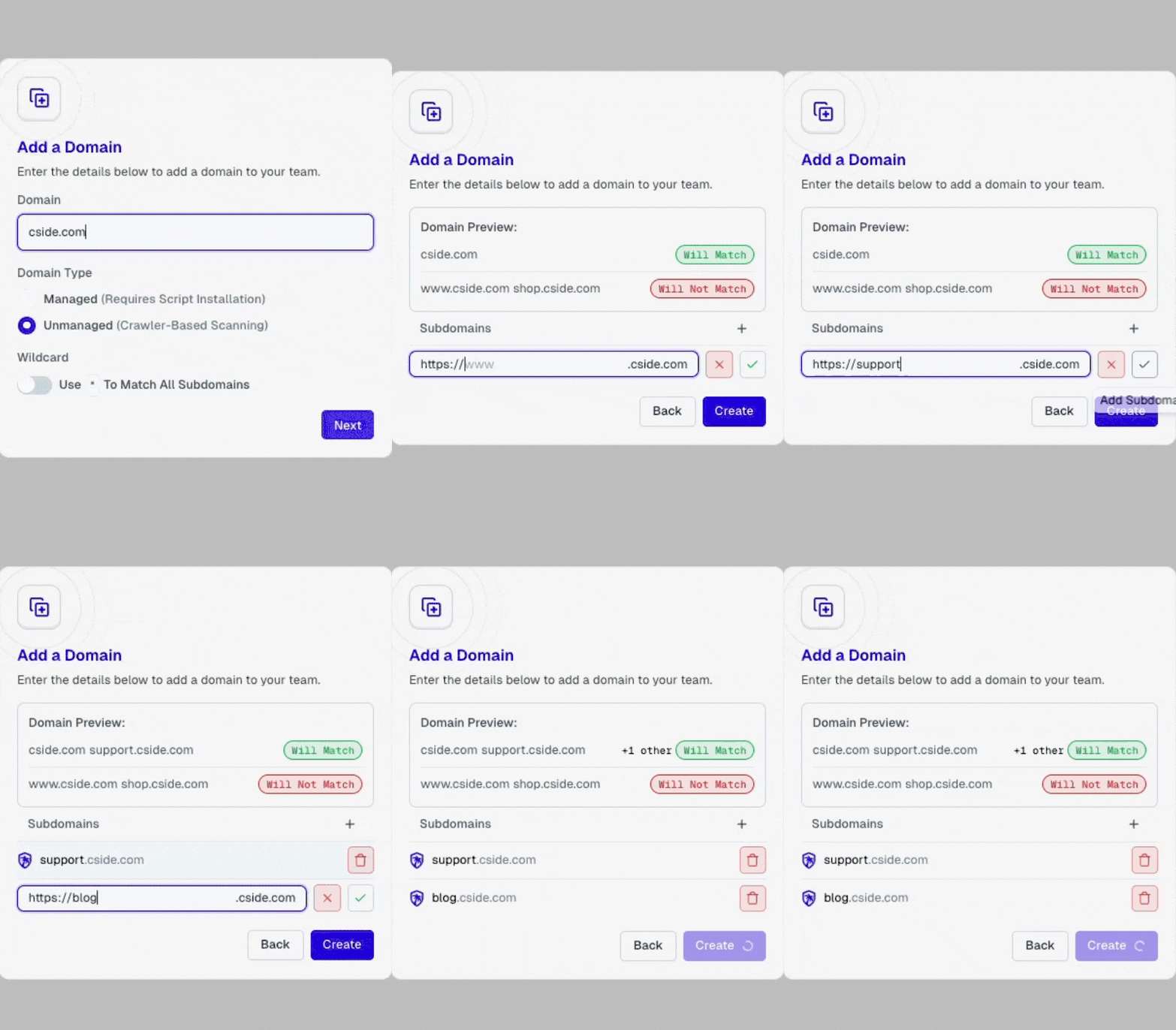
You can manually add specific subdomains of your site. The crawler will directly access these subdomains and crawl from there, within the same 30-page budget per session.
Step 3: Add specific URLs that must be crawled
Open the domain from the team Home page (or Team Settings > Domains), then open Domain Settings and select the Page settings tab. Here you can specify individual pages that must be included in the crawl. Configured pages are crawled before anything else in the session.
Optional: Adding Cookies, LocalStorage, and SessionStorage values
Some pages may require users to be logged in or have items in their cart. These states are typically managed through Cookies, LocalStorage, or SessionStorage values.
You can add these values to the cside crawler at two levels:
- Page level: Through Page Settings (takes priority)
- Global level: Through Global Settings (applies to all pages unless overridden)
This lets the crawler access protected or state-dependent content.
Sitemap Settings
You can provide your website’s sitemap to the crawler under the Sitemap tab in Domain Settings. Sitemap URLs are crawled right after your configured pages, so they get priority over links the crawler discovers itself. Because each session is limited to 30 pages, a large sitemap is not fully covered in one session; list your most important pages in Page Settings to guarantee they are included.
Thanks for your feedback!