Adding your Domain
Add your domain to cside from the dashboard, set up wildcard subdomains, and start monitoring the third-party scripts running in your visitors' browsers.
Adding your Website
You can add your website to cside from the cside dashboard by clicking the Add Domain button. It sits at the top right of the team Home page and under Team Settings > Domains.

Adding a domain
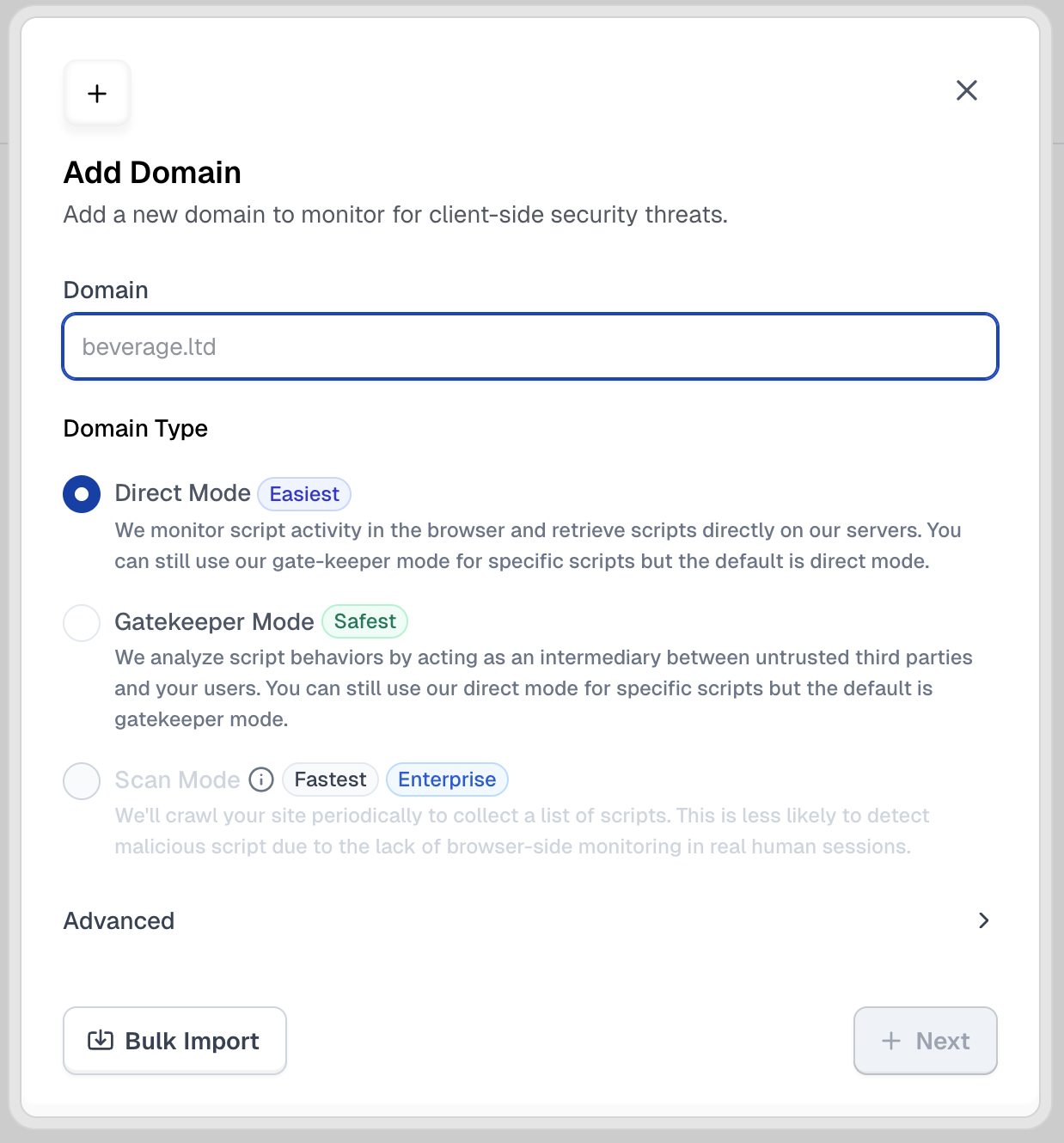
After clicking the button, you will be prompted to enter a few fields in a modal:
-
Enter your domain (e.g.,
example.com) -
Select a Domain Type:
- Script Method (badged Best): We monitor script activity in the browser and retrieve scripts directly on our servers.
- Scan Method (badged Fastest and Enterprise): We’ll crawl your site periodically to collect a list of scripts. This is less likely to detect malicious script due to the lack of browser-side monitoring in real human sessions.
-
Review the Domain Preview - This shows which domains and subdomains will be matched (e.g.,
example.com,www.example.com,shop.example.com) -
Configure Advanced Settings (optional) - Expand the Advanced section to configure additional options
-
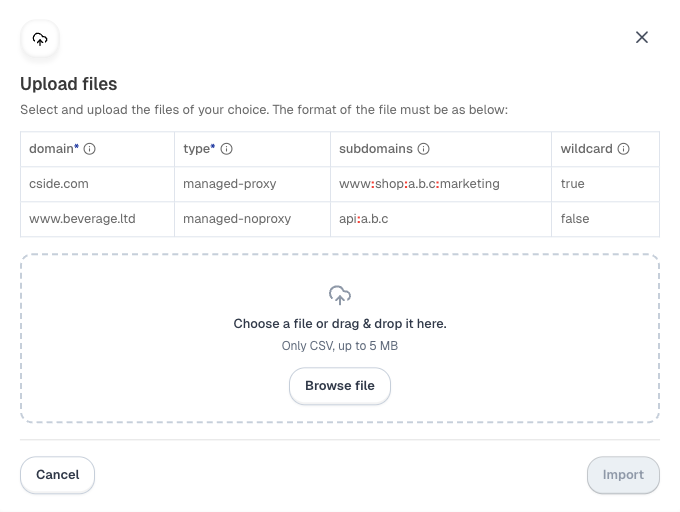
Click “Next” to proceed, or use “Bulk Import” to upload multiple domains via CSV
Wildcarding
Domains are wildcarded by default. If you want to onboard specific subdomains, you can add them on the next step. This lets you control exactly which subdomains are included in monitoring.
Next Steps
After clicking “Next”, you’ll be shown an option to add specific subdomains and complete adding the domain.
Now that the domain is added, let’s go to the next page and add our script.
Thanks for your feedback!