Using Salesforce Lightning
Integrate cside with Salesforce Lightning by relaxing your CSP settings, adding the trusted script sites, and pasting the script into your head markup.
Adjusting Custom CSP Rules for cside Edge Infrastructure
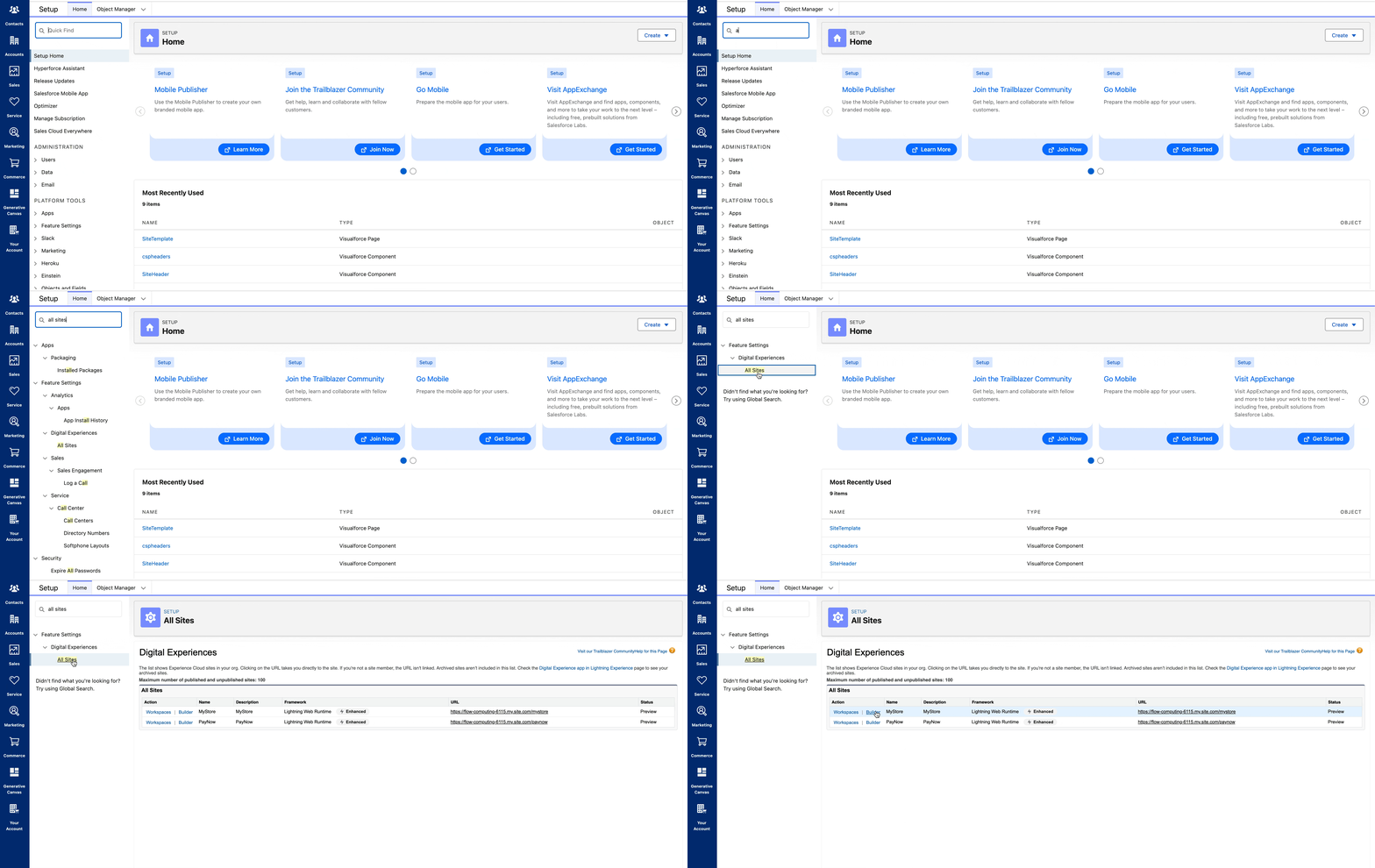
- Click on ‘Builder’ next to your selected page
-
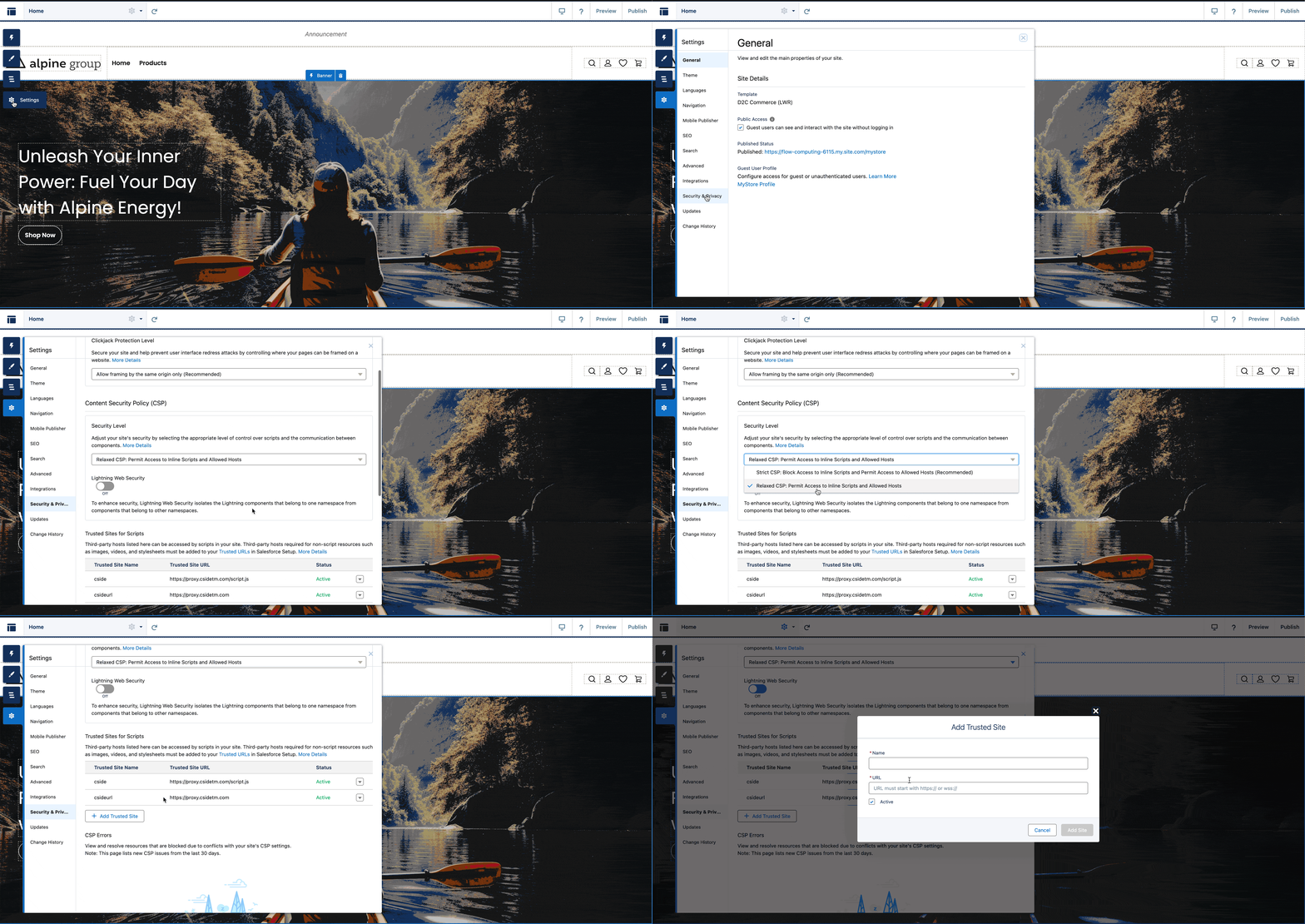
Click on settings along the left hand side > Security & Privacy
-
Scroll down to CSP Settings and select ‘Relaxed’
-
On ‘Trusted sites for scripts’ create two entries. ‘https://[your-team-id].csidetm.com/client.js’ and ‘https://[your-team-id].csidetm.com’
Add our script URL to your site
- Navigate to the ‘Advanced’ settings, located slightly above the Security & Privacy settings.
- Click on ‘Edit Head Markup’
- Paste our script URL into the head of the HTML above all other scripts.
<!-- cside script -->
<script
  src="https://[your-team-id].csidetm.com/client.js"
  referrerpolicy="origin"
></script>
<!-- the rest of your head code/scripts -->
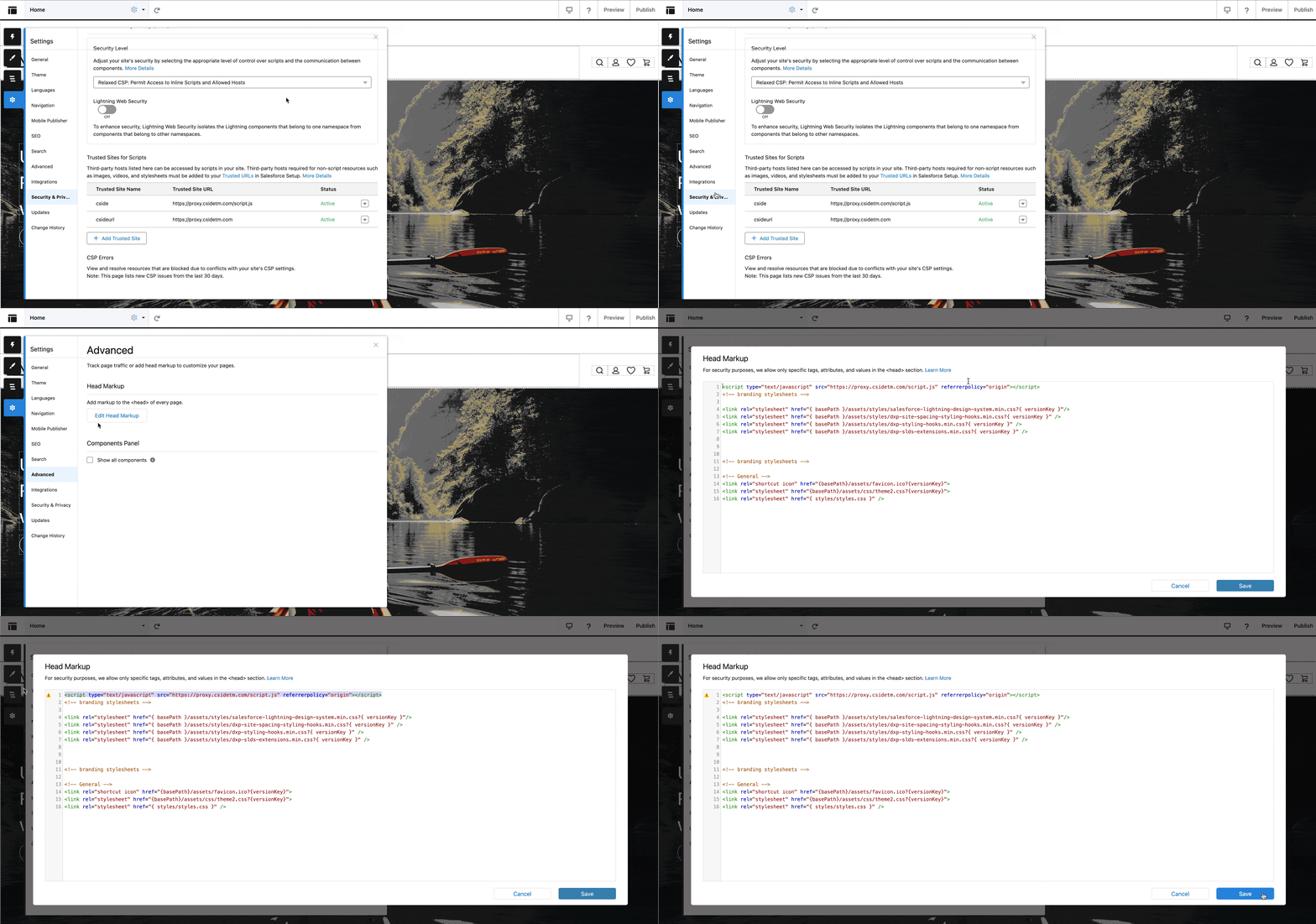
With the script now added and the CSP Settings updated, you should now be able to add your domain and monitor this page on your cside dashboard. Ensure to add this to all the pages where it is required.
Add your Domain
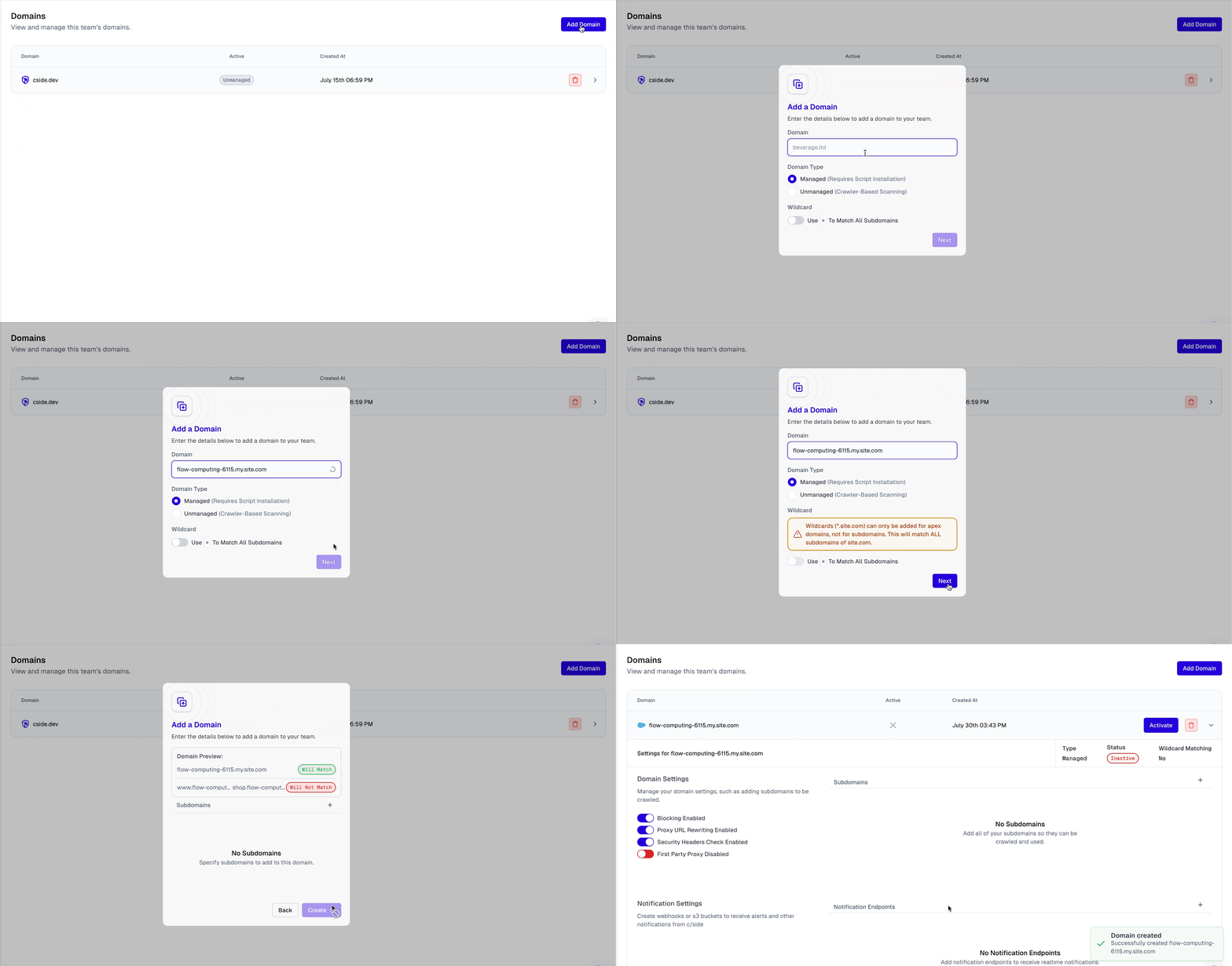
Now that the script has been added to your page, you can add the domain to your cside dashboard if this has not been done already. Click Add Domain on the team Home page (or under Team Settings > Domains), then follow the prompts.
Thanks for your feedback!